Home » Removal Guides » Software Fixes » Browser Hijacker Removal » Search Marquis – How to Remove This Browser Hijacker (Mac Guide 2025)
Search Marquis – How to Remove This Browser Hijacker (Mac Guide 2025)
- Browser Hijacker Removal
- Difficulty: Intermediate
- No Comments
What is Search Marquis?
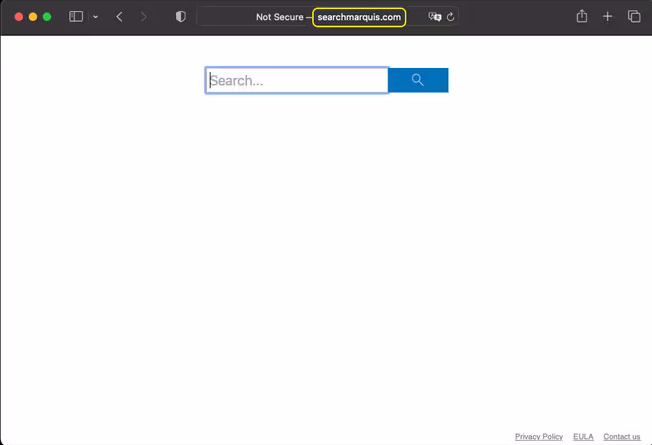
Search Marquis is a persistent macOS browser hijacker that redirects your browser traffic through several unwanted domains—usually searchmarquis.com → searchbaron.com → Bing.
It changes your default search engine, installs configuration profiles, and forces unwanted ads and redirects.
This threat is part of a well-known adware ecosystem that targets macOS versions including Ventura, Sonoma, and early 2025 releases.
Why Search Marquis is Dangerous!
Although it looks like a simple search engine, Search Marchise is categorized as a browser hijacker and PUP (Potentially Unwanted Program).
Search Marquis is more than an annoying redirect. It can:
- Track your searches and visited websites
- Inject ads into Google results
- Modify your browser settings and lock them
- Install malicious configuration profiles that reapply the hijack
- Redirect you through advertising networks
- Degrade Mac performance and stability
Symptoms of Search Marquis
- redirects your browser traffic through several unwanted domains
Important Warning
Although it’s often bundled with seemingly harmless apps, the hijacker creates a persistent loop that makes manual removal frustrating if you miss a single component.
How Search Marquis Infects
Search Marquis spreads mainly through:
- Fake Flash Player installers (common AdLoad vector)
- Torrent sites and cracked software installers
- Bundled installers on file-sharing websites
- Malicious advertising networks (malvertising)
- Fake system optimization tools
Important:
Search Marquis is a macOS-only threat.
No verified Windows or Linux variants exist.
Quick Fix (Recommended)
If you want to remove Search Marquis quickly and safely, the fastest option is to use a trusted malware removal tool. It can detect all components automatically and clean your system without the manual steps below.

Malwarebytes
Run a trusted anti-malware tool that scans for browser hijackers and removes malicious profiles, LaunchAgents, and rogue extensions including .
- Detects browser hijackers and adware
- Repairs unwanted search redirects
- Removes persistent startup entries
- Official Safe Installer
- Verified for
Remove Search Marquis from Manually
Follow these steps in order to completely remove Search Marquis from your .
Step
Remove Malicious Configuration Profiles
- Difficulty: Basic
- macOS
Search Marquis almost always installs a rogue config profile that forces the redirect.
- Open System Settings
- Go to Privacy & Security
- Scroll down to Profiles (only appears if something is installed)
- Look for suspicious profiles such as:
- AdminPrefs (known real Search Marquis profile)
- Anything locking homepage/search settings
- Select → Remove Profile
If you see AdminPrefs, you found the primary persistence mechanism.
- If the Profiles menu does NOT exist, macOS simply has no profiles installed.
Step
Remove Suspicious Applications
- Difficulty: Basic
- macOS
- Go to:
- Finder → Applications
- Look for unknown apps installed around the time redirects started. Common carriers include:
-
- “Search Marquis”
- Unknown “Manager” or “Data” apps
- Fake cleaners or boosters
- 3. Move them to Trash → Empty Trash.
Step
Check LaunchAgents & LaunchDaemons
- Difficulty: Intermediate
- macOS
Search Marquis components often use generic random names but belong to the broader macOS AdLoad family.
However, NO confirmed unique plist names exist specifically for Search Marquis.
You may safely check:
- User LaunchAgents
- ~/Library/LaunchAgents/
- System LaunchAgents
- /Library/LaunchAgents/
- System LaunchDaemons
- /Library/LaunchDaemons/
- Remove only if clearly malicious or tied to a suspicious app. If unsure, don’t delete, search the name on Google first.
Step
Remove Browser Extensions
Safari
- Menu → Settings
- Go to Extensions
- Remove unknown extensions
- Reset Homepage & Search
Search Marquis does not install a legitimate Safari App Extension signed by Apple, so any extension here is user-installed and removable.
Chrome
- Chrome Menu → Settings → Extensions
- Remove unknown items
- Reset search engine:
- Settings → Search Engine
- Ensure Google is selected
- Reset startup pages
Firefox
- Menu → Add-ons and Themes → Extensions
- Remove unknown items
- Reset search preferences
Step
Reset Browsers
To fully clear redirect rules, reset browser data.
Safari
- Menu → Settings → Privacy → Manage Website Data → Remove All
Chrome
- Settings → Reset Settings → Restore Settings to Default
Firefox
- Menu → Help → More Troubleshooting Info → Refresh Firefox
Step
Restart your Mac
- Difficulty: Easy
- macOS
This ensures all malicious processes are fully closed and removed.
- Just restart normally from the Apple menu.
Prevention Tips
Keeping your safe from any Adware, Browser Hijacker, Potentially Unwanted Program (PUP) requires a few simple but consistent security habits. Most infections occur through unverified downloads, misleading installers, or unsafe browsing practices. Following the recommendations below will help you avoid similar issues in the future:
- Download software only from official or trusted websites. Many infections originate from repacked installers or third-party download portals that bundle unwanted components.
- Be cautious with free programs that offer “recommended” add-ons. Always choose Custom or Advanced installation and deselect anything you do not explicitly want.
- Avoid clicking pop-ups that claim you must update your browser, Flash Player, or security software. These prompts are commonly used to distribute unwanted applications.
- Check your browser extensions regularly. Remove any add-on you do not recognize or remember installing.
- Keep your and applications updated. Security patches often fix vulnerabilities exploited by malicious software.
- Use a trusted antivirus or anti-malware tool. Real-time protection can block hijackers, adware installers, and suspicious redirects before they make changes to your system.
- Be careful when opening email attachments or clicking links from unknown senders. These remain common infection vectors for more aggressive threats.
By following these basic steps, you significantly reduce the risk of unwanted Adware, Browser Hijacker, Potentially Unwanted Program (PUP), like AdLoad, and other security issues. Regular system scans and safe-browsing practices remain the best long-term protection.
Conclusion
Search Marquis is one of the most stubborn macOS browser hijackers, relying on configuration profiles and search redirect chains.
With the steps above—and especially removing the AdminPrefs profile—you can restore your browser settings and prevent further redirects.
If you want a fast solution, use a reputable macOS anti-malware tool that detects the AdLoad family, which Search Marquis belongs to.
Modern tools remove:
- Configuration profiles
- Browser extensions
- LaunchDaemons / LaunchAgents
- Application Support leftovers
- Redirect settings